
Table of Contents
By Sam | Updated November 10, 2026. Current information from Google’s own help pages.
Google’s smart speakers and displays can play music from several streaming services, but what you get depends on which service you link and whether you pay for it. Google is also moving its speakers from Google Assistant to the new Gemini for Home voice assistant, which adds more natural voice requests. Here is the current list of supported services, what free and paid tiers can do, and how to set your default.
Key takeaways
- Google’s help center lists YouTube Music, Spotify, Pandora, Apple Music, Amazon Music and Deezer as supported music services.
- Free tiers of YouTube Music, Spotify and Pandora mostly play stations inspired by what you ask for, not the exact song.
- Paid tiers, Apple Music and Amazon Music let you request specific songs, albums, artists and playlists.
- Pandora is available in the U.S. only.
Supported music services
According to Google’s help article Listen to music on Google smart speakers and displays, here is what each service delivers:
| Service | What you get on a Google speaker |
|---|---|
| YouTube Music (free) | A station inspired by the song, album or artist you request |
| YouTube Music Premium / YouTube Premium | Specific songs, albums, playlists, liked songs and uploads (with personal results on) |
| Spotify (free) | Stations inspired by your request; Spotify-curated playlists on shuffle |
| Spotify Premium | Specific songs, albums, artists and personal playlists |
| Pandora (free, U.S. only) | Stations based on your request, with ads |
| Pandora Premium (U.S. only) | Specific songs and albums, custom playlists, no ads |
| Apple Music | Subscription required; specific songs, albums, artists and playlists |
| Amazon Music | Subscription required; specific songs, albums, artists and playlists |
| Deezer Premium and Family | Specific songs, albums or artists |
Google also notes that newly released songs may take a few days to appear for some providers, and that each person in a home can link only one account per streaming service.
How to link a service and set a default
- Open the Google Home app on a phone connected to the same account as your speaker.
- Go to your settings and find the music or media section.
- Choose a service, link your account, and select it as the default.
Once a default is set, “Hey Google, play some jazz” uses that service. To use a different one, add the name: “Hey Google, play Taylor Swift on Spotify.”
Useful voice commands
- “Play [song] by [artist]” or “Play [album] on [service]”
- “Play happy music” or “Play music for cooking”
- “Shuffle ” or “Next song”
- “Play music on [speaker group name]” to play across several speakers
- “Play my liked songs” (supported on paid YouTube Music and Spotify)
What Gemini for Home changes
Google says most basic music commands work with both Google Assistant and Gemini for Home. Gemini adds more natural requests, such as describing a song when you do not remember its name (“play the song from the movie where they fly into space to blow up an asteroid”), asking what lyrics mean, or asking for similar songs. According to Google’s language help page, Gemini for Home is in early access in countries including the U.S., U.K., Canada and Australia.
Which Google speakers are covered?
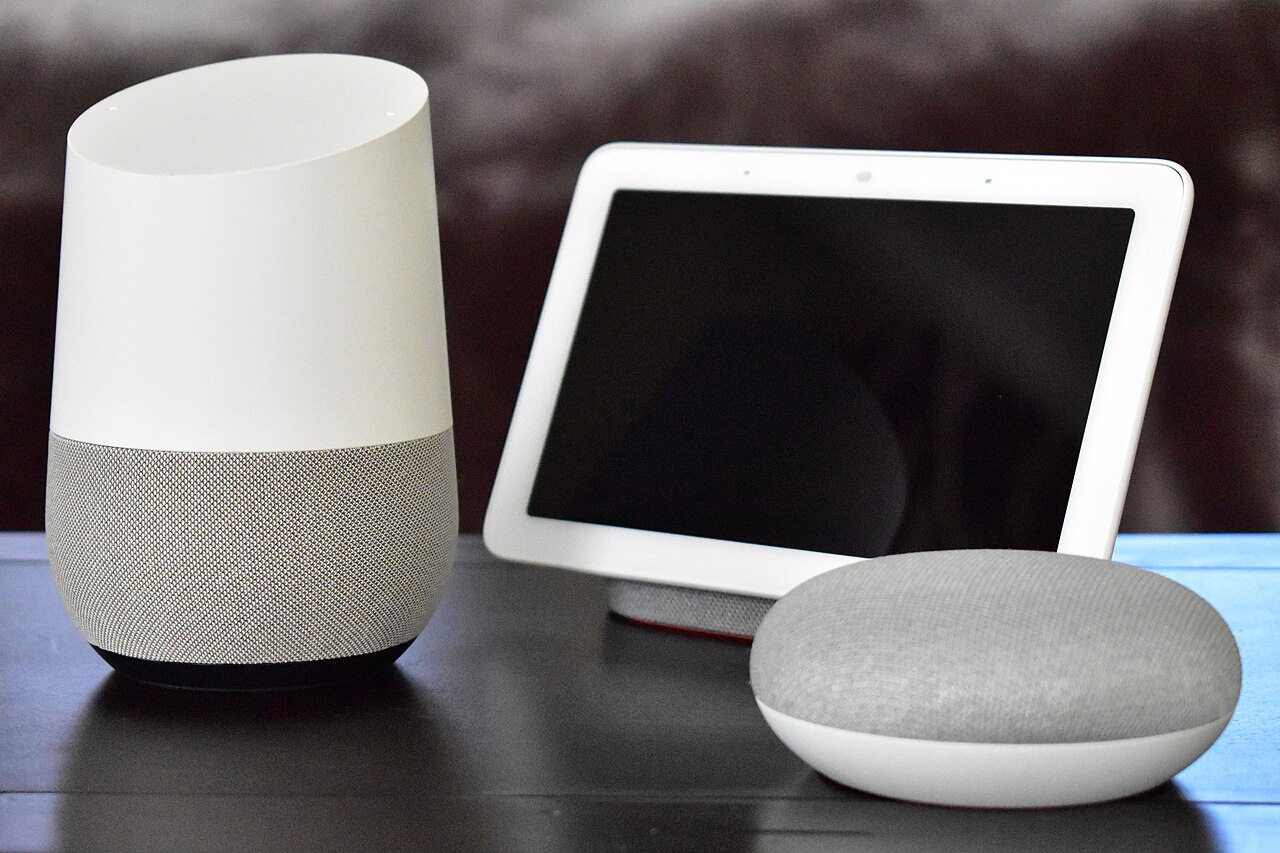
Google’s help pages cover the Google Home speaker, Nest Audio, Nest Mini (2nd gen), Home Mini (1st gen), Home Max, Nest Wifi points with speakers, Nest Hub displays and the Pixel Tablet in Hub Mode. Touch controls vary slightly by model; for example, tapping the center of a Nest Mini pauses or resumes music.
Troubleshooting tips
- Make sure the service is linked in the Google Home app.
- Be specific: add the artist or playlist name.
- For YouTube Music, check that Restricted Mode is off if media will not play.
- For Spotify on iPhone, turn on Local Network permission; on Android, allow Nearby Devices.
Building a home audio setup? See our look at music streamers and all-in-one systems, and our guide to streaming TV audio to hearing aids with Fire TV.
Sharing a speaker with family
Google says multiple people can use the same speaker or display, but each person can link only one account per streaming service. With Voice Match set up, the speaker can recognize who is speaking and play that person’s playlists and liked songs. Without Voice Match, guests and housemates may be able to access music from the linked library.
Digital Wellbeing settings can also affect music. If Downtime, Filters or Do Not Disturb are enabled, Google notes that music may be restricted or blocked during those periods. That is useful for kids’ rooms at night, but it can be confusing if you forget the setting is on.
Volume controls differ by device. On a Nest Mini or Nest Audio, tap the sides to change volume; on a Home Max, swipe along the touch strip; on Nest displays, use the volume buttons or the Quick Settings slider.
FAQ
Does Google Nest work with Apple Music?
Yes. You link your Apple Music account in the Google Home app; an Apple Music subscription is required.
Can I use free Spotify on a Nest speaker?
Yes, but you get stations inspired by your request rather than the exact song. Spotify Premium plays specific songs and playlists.
Is Amazon Music supported?
Yes, with an Amazon Music subscription linked to your Google account.
Is Pandora available outside the U.S.?
No. Google says Pandora on its speakers is U.S.-only.
Sources: Google Home and Nest Help, Listen to music on Google smart speakers and displays; Google Home and Nest Help, Change the language of your voice assistant.
Photo: Y2kcrazyjoker4 / Wikimedia Commons, CC BY-SA 4.0 (https://creativecommons.org/licenses/by-sa/4.0)